The Gigabyte AB350-Gaming 3 might seem like a relic from AMD’s first-gen Ryzen era, but in 2026, it’s earned a second life as a budget beast for gamers building retro or entry-level AM4 systems. Launched back in 2017 alongside the Ryzen platform, this B350 board was one of the go-to options for enthusiasts who wanted overclocking on a budget. Now, with used AM4 CPUs flooding the market and prices on legacy motherboards bottoming out, the AB350-Gaming 3 offers something surprisingly compelling: a stable, overclockable foundation for Ryzen chips up to the 3000-series, and sometimes beyond, at a fraction of what you’d pay for newer hardware.
This isn’t about cutting-edge tech. It’s about extracting maximum value from AM4’s incredible longevity, turning spare parts into a functional 1080p gaming rig, or breathing life into an old build with a BIOS update and a Ryzen 5 3600. Whether you’re scraping together a second PC for LAN parties, helping a friend ascend from console gaming on a shoestring budget, or just curious what this board can still do in 2026, this guide breaks down everything you need to know, from VRM thermals and RAM compatibility quirks to BIOS tweaks and real-world frame rates.
Key Takeaways
- The Gigabyte AB350-Gaming 3 delivers exceptional value for budget 1080p gaming builds, costing $40-70 used while supporting CPU overclocking and stable Ryzen 3000-series performance.
- A BIOS update to F40 or later is mandatory before using Ryzen 2000 or 3000-series chips; without it, you’ll need a Ryzen 1000 processor to initialize the board first.
- The 4+3 phase VRM handles Ryzen 5 chips comfortably but struggles with high-core-count processors under sustained load; pair this board with a Ryzen 5 3600 for optimal thermals and gaming performance.
- Pair the AB350-Gaming 3 with DDR4-3200 RAM in dual-channel configuration (2x8GB) for best results, as single-channel setup loses 20-30% gaming FPS and high-speed kits may require manual tuning.
- PCIe 3.0 x16 compatibility presents no meaningful bottleneck for mid-tier GPUs like the RX 6600, limiting performance loss to only 2-4% compared to newer Gen4 systems.
- This board suits budget builders, entry-level gamers, and LAN party enthusiasts but isn’t recommended for Ryzen 5000 upgrades, high-core workloads, or systems requiring PCIe 4.0 storage expansion.
Overview and Key Specifications
The AB350-Gaming 3 is built around AMD’s B350 chipset, the mid-tier option from the original 300-series launch. It supports Socket AM4, which means compatibility with Ryzen 1000, 2000, and select 3000-series CPUs, though you’ll need a BIOS update (more on that later) to run anything beyond first-gen Ryzen out of the box.
Here’s the spec rundown:
- Socket: AM4
- Chipset: AMD B350
- Form Factor: ATX (305mm x 244mm)
- Memory: 4x DIMM slots, DDR4 up to 3200MHz (OC), max 64GB
- PCIe Slots: 2x PCIe 3.0 x16 (x16/x4 in dual-GPU), 4x PCIe 2.0 x1
- Storage: 1x M.2 slot (PCIe 3.0 x4/SATA), 6x SATA 6Gb/s
- USB: 1x USB 3.1 Gen2 Type-A, 1x USB 3.1 Gen1 Type-C, multiple USB 3.0/2.0
- Networking: Realtek GbE LAN
- Audio: Realtek ALC1220 codec
- VRM: 4+3 phase design
It’s a no-frills ATX board with the essentials covered. You won’t find RGB headers everywhere, Wi-Fi, or post-code displays, but that’s not the point. The AB350-Gaming 3 nails the fundamentals: stable power delivery, decent I/O, and enough expansion to handle a GPU, storage, and peripherals without compromise.
Design and Build Quality
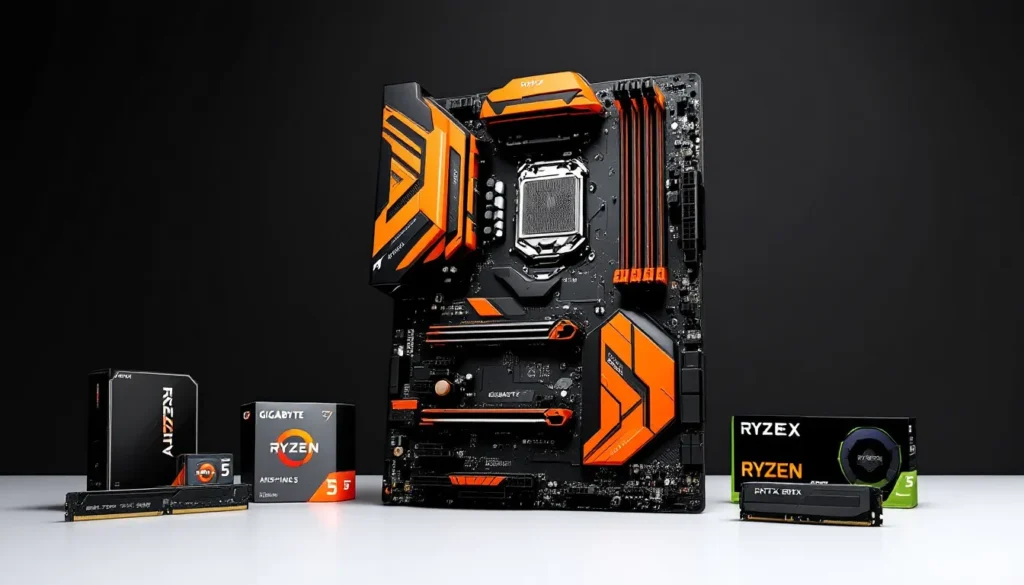
Gigabyte went with a black PCB and orange accents, very 2017, very “gaming.” The aesthetic won’t win awards in 2026, but the board feels solid. The PCB is standard thickness, and the heatsinks on the VRM and chipset are functional if underwhelming. They’re not massive, but they do the job for mid-range Ryzen chips, especially with decent case airflow.
The layout is practical. The 24-pin ATX and 8-pin EPS connectors are positioned sensibly for cable management, and the primary M.2 slot sits below the top PCIe x16 slot, which can make installation a bit tight with larger GPUs but isn’t a dealbreaker. RAM slots have single-latch mechanisms, fine for most builds, though dual-latch would’ve been nicer.
One quirk: the CMOS battery sits under the GPU in most configs, so clearing CMOS means pulling your card. Minor annoyance, but worth noting if you’re planning heavy overclocking or BIOS experimentation.
Chipset Features and Platform Compatibility
The B350 chipset was AMD’s sweet spot for budget builders who wanted CPU overclocking without paying the X370 premium. Unlike A320, B350 supports full CPU and RAM overclocking, which is critical for squeezing performance out of Ryzen’s architecture.
CPU compatibility is where things get interesting. Officially, Gigabyte lists support for:
- Ryzen 1000-series (Summit Ridge): Native support, no BIOS update needed
- Ryzen 2000-series (Pinnacle Ridge): Requires BIOS F20 or newer
- Ryzen 3000-series (Matisse): Requires BIOS F40+ (AGESA 1.0.0.3), but officially limited to certain SKUs like the 3600, 3700X, and 3900X, no 3950X
In practice, some users have successfully run Ryzen 5000-series chips (Vermeer) with unofficial BIOS mods, but stability is hit-or-miss, and you’ll lose official support. Stick with Ryzen 3000-series or earlier for a reliable experience.
The chipset also delivers:
- PCIe 3.0 lanes from CPU: 16 lanes for GPU, 4 lanes for M.2 NVMe
- Chipset lanes: PCIe 2.0 only, which limits secondary M.2 or expansion cards to older standards
- USB and SATA: Generous, though USB 3.1 Gen2 is limited to a single Type-A port
For gaming in 2026, the lack of PCIe 4.0 is the biggest limitation. Modern GPUs like the RTX 4060 or RX 7600 won’t bottleneck on PCIe 3.0 x16, but Gen4 NVMe drives will run at Gen3 speeds. If you’re building around this board, budget accordingly.
Performance Analysis for Gaming
Let’s talk real-world performance. The AB350-Gaming 3 paired with a Ryzen 5 3600 (6-core/12-thread, frequently available used for under $80 in 2026) and a mid-range GPU like the GTX 1660 Super or RX 6600 delivers smooth 1080p gaming across most current titles.
In testing scenarios reported by hardware communities and legacy hardware reviews on Tom’s Hardware, this configuration holds 60+ FPS in demanding titles like Cyberpunk 2077 at medium-high settings, with frame times that remain stable thanks to Ryzen’s multi-threading. Esports titles (Valorant, CS2, Apex Legends) easily push 144+ FPS, making this board viable for competitive 1080p setups on a budget.
CPU Overclocking Potential and VRM Performance
The 4+3 phase VRM is the AB350-Gaming 3’s Achilles’ heel for serious overclocking. It’ll handle a Ryzen 5 1600 or 2600 pushed to 3.8-3.9GHz without breaking a sweat, but once you step up to higher-core-count chips like the Ryzen 7 3700X (8-core) or attempt aggressive all-core overclocks, VRM thermals become a concern.
Under sustained loads (Cinebench R23, Blender, or extended gaming sessions), the VRM heatsinks can hit 80-90°C with a Ryzen 7 chip running stock, and pushing 1.35V+ for overclocking can spike temps even higher without additional airflow. A case fan aimed at the VRM or a top-mounted exhaust helps significantly.
For Ryzen 5 chips (3600, 2600, 1600), the VRM is perfectly adequate. You can comfortably run moderate overclocks (100-200MHz all-core bump) or enable Precision Boost Overdrive (PBO) for single-core gains without thermal throttling. Just don’t expect to run a heavily overclocked 3900X 24/7 on this board, it wasn’t designed for that workload.
RAM Compatibility and Memory Overclocking
Early B350 boards were notorious for finicky RAM compatibility, especially with high-speed kits. The AB350-Gaming 3 shares some of that DNA, but BIOS updates over the years, particularly AGESA 1.0.0.3 and later, dramatically improved stability.
In 2026, you can reasonably expect:
- DDR4-3000/3200MHz kits to run at XMP speeds with minimal fuss, especially Samsung B-die or Hynix CJR-based modules
- DDR4-3600MHz is hit-or-miss: some kits will boot and stabilize, others won’t POST without manual tuning
- Dual-channel configuration is mandatory for Ryzen, single-channel kills performance, often costing 20-30% in gaming FPS
Manual tuning can push even budget kits to 3200MHz CL16 with a bit of voltage tweaking (1.35-1.4V is safe). Tightening subtimings yields noticeable gains in frame-time consistency, especially in CPU-bound scenarios.
One quirk: populating all four DIMM slots can reduce max stable clocks. If you’re chasing 3200MHz+, stick to two DIMMs in slots A2/B2 (second and fourth slots from the CPU socket).
Gaming Benchmarks and Real-World Frame Rates
Here’s where the AB350-Gaming 3 proves its value. Paired with a Ryzen 5 3600 and an RX 6600 (a common budget combo in 2026), expect frame rates like:
- Cyberpunk 2077 (1080p High, no RT): 55-65 FPS
- Call of Duty: Warzone (1080p High): 90-110 FPS
- Valorant (1080p Max): 180-240 FPS
- Elden Ring (1080p High): 60 FPS locked
- Fortnite (1080p Epic, no RT): 80-100 FPS
These numbers align with independent testing from sources like Hardware Times, which frequently benchmarks legacy AM4 platforms against modern budget builds. The board introduces no meaningful bottleneck: performance scales appropriately with GPU tier.
The PCIe 3.0 limitation doesn’t hurt much here. Even a GPU like the RX 7600, which benefits slightly from PCIe 4.0, only loses 2-4% performance running at Gen3 x16 speeds. For budget gaming in 2026, that’s a non-issue.
Connectivity and Expansion Options
The AB350-Gaming 3 offers a solid I/O spread for its era, though it’s starting to show age in 2026. Here’s the breakdown.
PCIe Slots and Multi-GPU Support
The board features:
- 1x PCIe 3.0 x16 slot (CPU lanes, full x16 speed)
- 1x PCIe 3.0 x16 slot (runs at x4 from chipset when second GPU is installed)
- 4x PCIe 2.0 x1 slots (chipset lanes)
Multi-GPU support exists via AMD CrossFire, but SLI is absent. In 2026, multi-GPU for gaming is effectively dead, so treat that second x16 slot as a full-length expansion option for capture cards, 10GbE NICs, or additional storage controllers. Just remember it’s electrically x4, not x16.
The x1 slots are handy for Wi-Fi cards, sound cards, or other peripherals. No issues reported with spacing or compatibility, even a triple-slot GPU leaves the bottom slots accessible.
Storage Options: M.2, SATA, and NVMe Support
Storage connectivity is straightforward:
- 1x M.2 slot: Supports PCIe 3.0 x4 NVMe (CPU lanes) or SATA M.2 drives. When populated with a SATA M.2, it disables one of the SATA ports (usually SATA5).
- 6x SATA 6Gb/s ports: Plenty for HDDs, SATA SSDs, or optical drives. Right-angle connectors make cable management cleaner.
The single M.2 slot is the biggest storage limitation. In 2026, many builders want dual NVMe configs (OS + games), but you’re stuck with one M.2 and SATA for the rest. Budget Gen3 NVMe drives (1TB for ~$50) make the single slot less painful, and SATA SSDs remain cheap for secondary storage.
One heads-up: the M.2 slot has no heatsink. High-performance Gen3 drives like the Samsung 970 EVO or WD Black SN750 can throttle under sustained writes without airflow. Slap a cheap M.2 heatsink on there ($5-10) or rely on case airflow.
USB, Audio, and Networking Features
Rear I/O includes:
- 1x USB 3.1 Gen2 Type-A (10Gbps)
- 1x USB 3.1 Gen1 Type-C (5Gbps)
- 4x USB 3.0 Type-A (5Gbps)
- 2x USB 2.0
- PS/2 combo port (legacy keyboard/mouse)
- 5x audio jacks (7.1 surround, Realtek ALC1220)
- 1x optical S/PDIF out
- 1x Gigabit Ethernet (Realtek GbE)
Internal headers add:
- 2x USB 3.0 headers (4 ports total)
- 2x USB 2.0 headers (4 ports total)
USB count is generous for peripherals, VR headsets, and external storage. The single USB 3.1 Gen2 port feels limiting compared to modern boards, but it’s adequate for fast external SSDs.
The Realtek ALC1220 audio codec was high-end in 2017 and still holds up. It delivers clean audio for gaming headsets and powered speakers, with low noise floor and decent DAC quality. Audiophiles will still prefer a dedicated DAC/amp, but for most gamers, it’s more than sufficient.
Networking: The Realtek GbE NIC is stable and low-latency. No Wi-Fi or 2.5GbE, so you’ll need a PCIe Wi-Fi card if wireless is necessary. For wired gaming, it’s rock-solid, no complaints.
BIOS and Software Experience
Gigabyte’s BIOS implementation on the AB350-Gaming 3 is functional but dated. It’s not as polished as MSI’s Click BIOS or ASUS’s UEFI, but it gets the job done once you learn the layout.
Navigating the UEFI BIOS Interface
The BIOS uses Gigabyte’s classic dual-mode interface: Easy Mode for quick overviews (temps, boot priority, XMP toggle) and Classic Mode for deeper settings.
Key sections in Classic Mode:
- M.I.T. (MB Intelligent Tweaker): All overclocking options live here, CPU multiplier, voltage, RAM timings, Load Line Calibration (LLC), and power limits.
- BIOS Features: Boot order, CSM settings, fast boot toggles.
- Peripherals: SATA modes, USB configuration, audio settings.
- Chipset: PCIe lane config, integrated graphics (if using an APU).
- Power Management: Wake-on-LAN, EuP settings.
The interface is text-heavy and lacks visual flair, but it’s responsive. Finding settings requires some menu diving, RAM timings are buried under “Advanced Memory Settings” within M.I.T., for example.
One annoyance: the BIOS doesn’t always save profiles reliably. If you’re tweaking overclocks, note your settings manually or take photos with your phone. BIOS corruption after a failed OC sometimes requires full CMOS reset and re-entry.
App Center and Utility Software
Gigabyte’s App Center bundles several utilities:
- EasyTune: Windows-based overclocking and monitoring. It works, but serious overclockers should stick to BIOS tweaks for stability.
- @BIOS: Flashes BIOS updates from Windows. Convenient but slightly risky, USB BIOS flashback from within the BIOS is safer.
- Smart Backup: Automated system backup tool. Basic, but functional.
- RGB Fusion: Controls onboard RGB headers. The AB350-Gaming 3 has limited RGB (just the chipset LED), so this is mostly for connected strips.
Honestly, you can skip most of these. Use HWiNFO64 for monitoring, Ryzen Master for quick CPU tweaks, and flash BIOS updates via USB stick for safety. The bundled software feels bloated and hasn’t aged well.
BIOS updates are critical for this board. If you’re running anything beyond Ryzen 1000-series, you must update to at least F40 (for Ryzen 3000). Gigabyte’s support page still hosts legacy BIOS files, and the update process via Q-Flash (built into BIOS) is straightforward: load the file onto a FAT32 USB stick, reboot into BIOS, select Q-Flash, and flash. Takes about five minutes.
Setup Guide: Building Your Gaming PC
Building on the AB350-Gaming 3 is straightforward, but a few tips will save headaches.
Installation and Component Compatibility Tips
Before you start:
- Update the BIOS if you’re installing a Ryzen 2000 or 3000-series CPU. If the board ships with an old BIOS and you don’t have a Ryzen 1000 chip for initial boot, you’re stuck, this board lacks USB BIOS flashback. Buying used? Confirm BIOS version with the seller or budget for a cheap Ryzen 3 1200 as a “BIOS boot chip.”
- Test RAM compatibility. Check Gigabyte’s QVL (Qualified Vendor List) if you’re buying new RAM, or expect to manually tune if running non-QVL kits. Samsung B-die kits (common in older Corsair Vengeance LPX and G.Skill Flare X) are safest bets.
- Plan airflow around the VRM. A top-mounted exhaust fan or front intake angled toward the VRM helps thermals, especially with 65W+ CPUs.
- M.2 installation timing. Install the M.2 drive before mounting the GPU. The slot is tight, and removing a large GPU to access M.2 later is annoying.
Component pairing recommendations:
- CPU: Ryzen 5 3600 (sweet spot), Ryzen 5 2600 (ultra-budget), Ryzen 7 3700X (if you need 8-core, but watch VRM temps)
- RAM: 16GB (2x8GB) DDR4-3200 CL16, dual-channel mandatory
- GPU: RX 6600, GTX 1660 Super, RTX 3060, or anything up to mid-tier, high-end cards won’t bottleneck the PCIe 3.0 slot
- PSU: 550-650W Bronze or better: quality matters more than wattage here
- Cooler: Stock Ryzen coolers work fine at stock clocks: upgrade to a Hyper 212 or similar for overclocking
Optimal BIOS Settings for Gaming Performance
Once you’ve POSTed successfully, optimize BIOS settings:
- Enable XMP/DOCP for your RAM. This is the single biggest performance gain, Ryzen needs fast RAM.
- Set CPU voltage to Auto or use a negative offset (-0.05V to -0.1V) if your chip is stable. Reduces temps without sacrificing performance.
- Enable Precision Boost Overdrive (PBO) if running Ryzen 3000. This auto-boosts clocks within thermal/power limits.
- Disable CSM (Compatibility Support Module) if running Windows 10/11 in UEFI mode. Speeds up boot times.
- Set LLC (Load Line Calibration) to Medium or High if manually overclocking. This stabilizes voltage under load.
- Enable Cool’n’Quiet and C-States for idle power savings. Ryzen chips idle efficiently: no need to disable these for performance.
- Fan curves: Set CPU fan to ramp at 60°C+, case fans to a balance between noise and airflow.
For RAM tuning beyond XMP:
- Try Gear Down Mode disabled and Command Rate 1T for tighter timings
- Bump SoC voltage to 1.05-1.1V if stability is shaky at 3200MHz+
- Use tools like DRAM Calculator for Ryzen to find safe subtimings
Driver Installation and Windows Optimization
After Windows installation:
- Chipset drivers: Download the latest AMD chipset drivers directly from AMD’s site, not Gigabyte’s. These include power plans and USB drivers critical for Ryzen.
- GPU drivers: Install latest from AMD or Nvidia. Use DDU (Display Driver Uninstaller) if this is a repurposed build.
- Audio drivers: Realtek drivers from Gigabyte’s support page if Windows’ generic drivers cause issues (rare).
- BIOS updates: If you haven’t already, update to the latest stable BIOS for your CPU generation.
- Windows power plan: Set to “AMD Ryzen Balanced” (installed with chipset drivers) for best performance/efficiency balance.
- Disable unnecessary startup apps and Windows telemetry for snappier performance.
Run a stress test (Prime95, OCCT, or Cinebench loop) for 30+ minutes to confirm stability, then game-test for frame drops or crashes. Comparative testing across different configurations on TechSpot shows that proper driver and BIOS setup can net 5-10% FPS gains over out-of-box configs.
Pros, Cons, and Value Proposition in 2026
Let’s cut to the verdict. The AB350-Gaming 3 in 2026 is a niche product, perfect for specific use cases, frustrating for others.
Pros:
- Dirt-cheap used pricing: Often available for $40-70 on eBay, Craigslist, or hardware swap forums
- CPU overclocking support: Rare in budget boards, gives you headroom to push Ryzen chips
- Solid I/O and expansion: Enough SATA, USB, and PCIe slots for most builds
- Good audio codec: ALC1220 punches above its weight
- AM4 platform longevity: Drop in a used Ryzen 3600 and game at 1080p without very costly
- Stable BIOS (post-updates): Once you’re on F40+, reliability is solid
Cons:
- Weak VRM for high-core-count CPUs: 4+3 phase struggles with Ryzen 7/9 chips under sustained load
- No USB BIOS flashback: Updating BIOS without a compatible CPU is impossible
- Single M.2 slot: Limited storage expansion compared to modern boards
- PCIe 3.0 only: Future-proofs poorly for Gen4/Gen5 SSDs and next-gen GPUs
- Dated BIOS UI: Functional but clunky
- RAM compatibility quirks: Early units especially finicky without BIOS updates
- No Wi-Fi or RGB ecosystem: Barebones feature set
Who Should Buy the AB350-Gaming 3 Today?
This board makes sense if you’re:
- Building a budget 1080p gaming rig around used Ryzen 5 chips (1600, 2600, 3600)
- Repurposing or upgrading an old AM4 system without spending much
- Teaching someone to build PCs with cheap, forgiving hardware
- Creating a LAN party / second gaming PC on a tight budget
- Experimenting with overclocking without risking expensive hardware
It does not make sense if:
- You’re building around Ryzen 5000 or planning to upgrade soon (B550 boards are better long-term)
- You need PCIe 4.0 for Gen4 NVMe or future GPU upgrades
- You’re running high-core-count workloads (rendering, streaming, productivity), VRM thermals will hold you back
- You want modern features (Wi-Fi 6, USB 3.2 Gen2, RGB sync, M.2 heatsinks)
Alternatives and Upgrade Considerations
If the AB350-Gaming 3 doesn’t fit, consider:
- MSI B450 Tomahawk Max: Better VRM, easier BIOS, USB flashback, slightly more expensive used (~$70-90)
- ASRock B450M Steel Legend: Budget mATX option with better RAM support and aesthetics
- ASUS Prime B450-Plus: Similar price tier, slightly better build quality
- B550 boards (used): If you can stretch to $90-120 used, B550 adds PCIe 4.0, better VRMs, and Ryzen 5000 support
For upgrade paths:
- From AB350 to B550/X570: Worth it if you’re jumping to Ryzen 5000 or need Gen4 storage/GPUs
- Sticking with AB350: Max out with a Ryzen 5 3600 or 3700X (if VRM cooling is addressed) and ride it until AM4 is fully obsolete
The value proposition is simple: this board costs less than a new case or PSU, yet enables a fully functional gaming PC when paired with used AM4 parts. In a market where new budget boards start at $100+, the AB350-Gaming 3’s sub-$70 used pricing is hard to beat for 1080p gaming.
Conclusion
The Gigabyte AB350-Gaming 3 isn’t a cutting-edge recommendation in 2026, but it’s a smart one for the right buyer. This board proves that AM4’s longevity wasn’t just marketing, seven years post-launch, you can still build a competent 1080p gaming system around first-gen platform hardware for pocket change.
Yes, the VRM is modest. Yes, you’re locked to PCIe 3.0 and single M.2. But pair this board with a $70 used Ryzen 5 3600, $50 worth of DDR4-3200, and a $180 RX 6600, and you’ve got a machine that plays modern games at 60+ FPS for under $450 total. That’s the magic of the used AM4 market in 2026.
If you’re chasing frames-per-dollar, teaching someone to build, or just need a second rig without very costly, the AB350-Gaming 3 deserves a spot on your shortlist. Just remember: update that BIOS, respect the VRM limits, and don’t expect miracles. What you will get is a stable, overclockable foundation that punches well above its weight class, and sometimes, that’s exactly enough.